6 Step White Label Setup for Agency Client Report Access
6 Step White Label Setup for Agency Client Report Access

Client report access is the white-label, client-facing way you let local-business clients view live Google Maps grid ranking reports without logging into your tools. For most retainer clients, the right default is a live white-label link with a date-history selector, paired with a scheduled email so nobody has to ask “is this working?” We lean on Maprank and Google Business Profile data as the two core pieces of that workflow.
TL;DR:
- Static PDFs become outdated after the next scan and require manual exports, while embedded portals suit multi location clients but usually need secure logins.
- Google Business Profile data records views, calls, and direction requests, whereas grid scans simulate positions; label the sources separately so clients do not confuse them.
- Give each client a unique token, password, or portal login, and limit API access to managed accounts while monitoring quotas to prevent reporting conflicts.
- A report pairs a heatmap and sample point movements with separate GBP metrics, then explains drops through citation gaps, weak service pages, or stale reviews.
Table of Contents
- What client report access actually means for agencies
- Sharing methods: live links, embedded reports, PDFs, and scheduled emails
- Data sources and accuracy: GBP metrics vs. grid-based rank scans
- Technical setup checklist for white-label rank reports
- Automation and scaling without losing transparency
- Privacy, permissions and labeling third-party rank data
- What to show clients: metrics, visuals, and narrative
- Agency perspective: how white-label access changes client conversations
- How Maprank supports white-label client report access
- FAQ
- Sources
What client report access actually means for agencies
In this context, client report access is narrower than it sounds. It means giving a client view or download rights to a branded Google Maps rank report built from grid scans, not giving them access to your billing dashboard, your Google account, or any internal admin panel. Those are separate systems with separate permissions, and mixing them up is how agencies accidentally expose other clients’ data.
The common use cases are simple: a monthly retainer client checking progress, a one-off audit for a prospect, or a business owner verifying their map pack coverage before a seasonal push. Each of these calls for the same thing: a clean, branded view of where the business ranks across a defined area, updated on a schedule the client can trust.
Sharing methods: live links, embedded reports, PDFs, and scheduled emails
The method you pick shapes how much manual work you take on every month. Each option trades off freshness, client autonomy, and setup effort differently.
- Live white-label links: Always current, let clients pick a date range themselves, and need zero re-sending once set up.
- Embedded dashboards or client portals: Work well for multi-location clients managing several branches, but usually require SSO or login credentials to secure.
- Static PDFs: Easy to attach to an email or save for a file, but stale the moment a new scan runs and require manual export each time.
- Scheduled branded emails: A middle ground, automated delivery of a summary with a link back to the live report.
For most retainers, a live link with a history selector covers most client questions on its own, since clients can check progress without waiting on you; see this Google Business Optimization for Local Businesses guide for practical setup tips.
Pro Tip: Pair a live link with one scheduled email per month so clients who never click through still see the headline numbers.
Data sources and accuracy: GBP metrics vs. grid-based rank scans
Two very different datasets end up in the same report, and conflating them confuses clients fast. Google Business Profile performance reports let you download views, searches, and action metrics for one or several profiles over a chosen time period, straight from Business Profile Manager. That data reflects what Google itself recorded for a listing: impressions, calls, direction requests.
Grid-based rank scans measure something else entirely: simulated search positions sampled across a grid of points around a business, run by a third-party tool rather than reported by Google. The Business Profile Performance API exposes the official metrics programmatically, including time series and keyword impression endpoints, and requires the business.manage OAuth scope to authorize access.
Grid ranks are a simulated snapshot of visibility, not a Google-reported position. Labeling them as third-party data prevents clients from assuming Google itself generated the number.
One clear line in every report avoids most confusion: grid positions are third-party simulated data, GBP metrics are Google-reported.
Technical setup checklist for white-label rank reports
Getting the setup right once saves dozens of support emails later.
- Connect a custom domain or subdomain with SSL so the report looks and feels like your own product, not a third-party tool.
- Add your logo, colors, and client name to the report template before the first scan runs.
- Choose a permission model: a tokenized view-only link, a password-protected link, or a client portal login.
- Configure grid size, spacing, and scan frequency, and connect the GBP Performance API if you want official metrics alongside grid data.
- Set an automated schedule for report refreshes and a naming convention that keeps client reports from colliding.
- Run one test scan and compare it against a manual GBP export to confirm the numbers line up and the labeling is clear.
Our guide to checking Google Business Profile ranking walks through that verification step in more detail.
Automation and scaling without losing transparency
Manual exports do not scale past a handful of clients. Automating the pipeline is what lets one person run reporting for fifty accounts instead of five.
- Schedule scans to run automatically and regenerate the branded report without anyone opening a spreadsheet.
- Give clients a live URL with a date selector so they can self-serve historical comparisons instead of emailing you.
- Send an automated branded summary email that links back to the live report rather than attaching a new file each time.
- Set frequency limits and watch API quotas so scans and GBP pulls do not stack up against account limits.
Pro Tip: Build your naming and versioning template once, then reuse it across every client so nothing breaks when you add account number fifty.
Privacy, permissions and labeling third-party rank data
Every grid-scan result shown to a client should carry a visible label: third-party simulated data, not a Google-reported position. That single habit prevents the most common client confusion, comparing a grid rank against a GBP impression count as if they measured the same thing.
Permission choices matter just as much. Tokenized links, password-protected links, and portal logins each work, but the token or password must be unique per client so one leaked link never exposes another account’s data. When pulling official metrics through the GBP Performance API, keep the business.manage scope authorization scoped to the accounts you actually manage, and monitor quota so a reporting job for one client never blocks another.

What to show clients: metrics, visuals, and narrative
A good client report answers one question fast: are we winning or losing ground, and why. The visuals and numbers should make that obvious without a call.
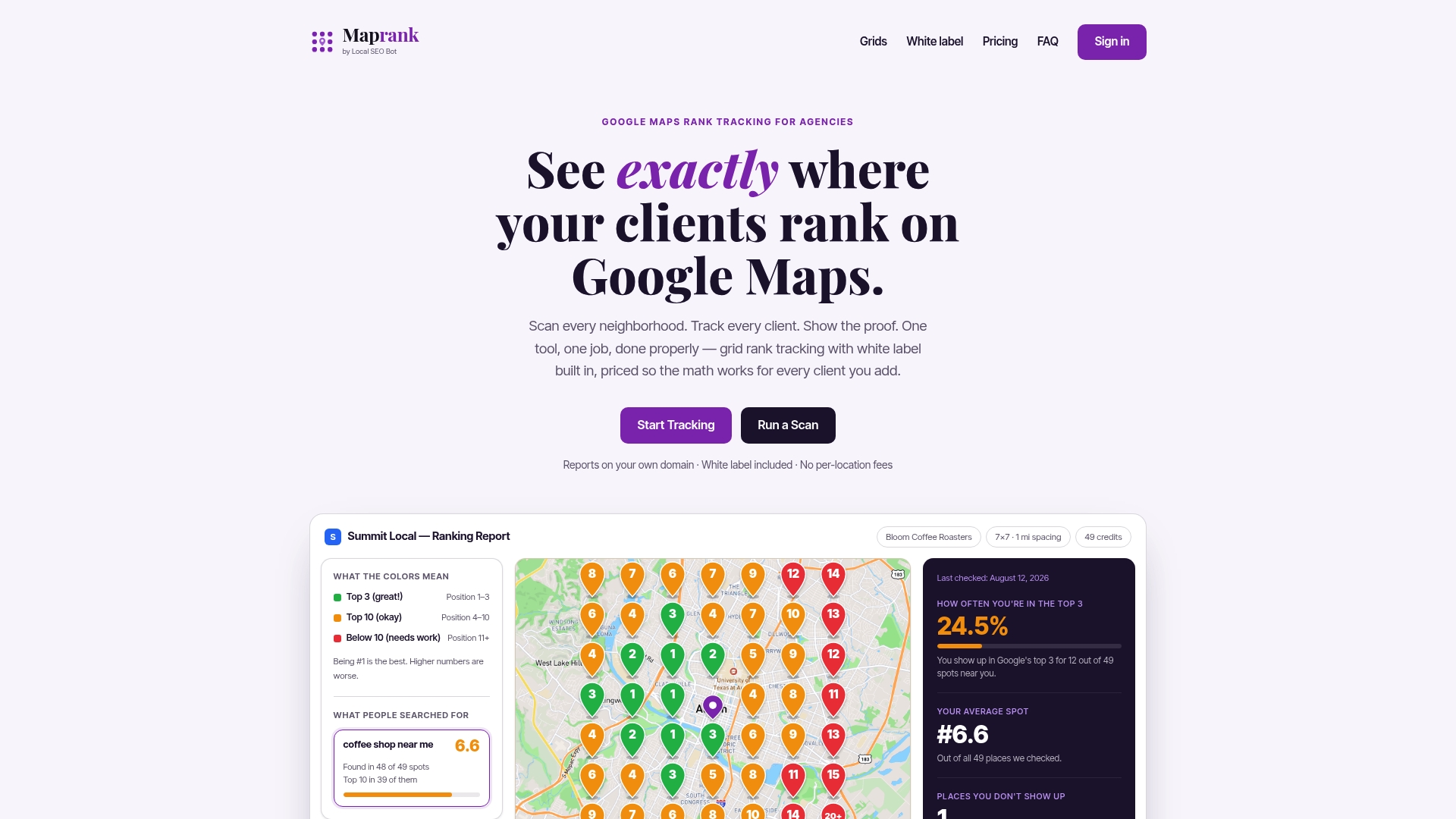
- A geo-grid heatmap showing ranked and unranked points across the service area.
- A table of sample points with current position and movement since the last scan.
- A trend chart with a date selector so clients can compare any two periods themselves.
- GBP views, impressions, clicks, and actions shown alongside grid data, clearly labeled as separate sources.
Close with a short executive summary: the top three changes since last report, one or two recommended next steps, and any win worth celebrating. When grid coverage drops in a specific area, tie it back to something actionable, a citation gap, a thin service page, or a stretch without recent reviews, rather than leaving the client to guess.
Agency perspective: how white-label access changes client conversations
Giving clients a live, branded link changes the shape of the relationship. Instead of fielding “can you send an update” messages every other week, clients check the link themselves and the conversation shifts to strategy instead of status. Branded reporting also reads as more professional than a generic export, which tends to support retention over time. A five-minute walkthrough during onboarding, showing a new client exactly where the link lives and how to read the date selector, removes almost all the confusion that would otherwise land in your inbox later.
— Local
How Maprank supports white-label client report access
We built Maprank around the exact workflow this guide recommends: customizable scan grids, white-label reporting on your own domain, unlimited businesses on every plan, and credit-based scan pricing instead of per-location fees that punish you for growing. A typical setup looks like this: schedule recurring grid scans, publish the results to a branded live link, and let an automated email notify the client when a new scan lands.
| Plan | Monthly price | Annual price |
|---|---|---|
| Maprank Solo | $19 | $228 |
| Maprank Agency | $39 | $468 |
| Maprank Pro | $79 | $948 |
| Maprank Scale | $149 | $1,788 |
If you are not ready to commit to a plan, a one-off rank check lets you test grid scanning on a single account first. For agencies managing multiple branches, our local rank tracker maps a full service area in one scan rather than stitching together separate reports.
Pro Tip: Run your first scan on an existing client before your next check-in call, then show them the live link instead of describing the results.

Agencies considering alternatives often look at other geo-grid tools; our comparison of Maprank against Local Falcon and our breakdown versus BrightLocal cover how pricing and grid features stack up if you want to weigh options directly.
To put the workflow in order:
- Set your scan grid and schedule.
- Apply white-label branding to the report.
- Share the live link and let automated emails handle the updates.
Start with the Maprank landing page to pick a plan, or try a single rank check first to see the report format before rolling it out across your client list.
FAQ
What is client report access in a Google Maps rank tracker?
It is a white-label, client-facing view of your agency’s grid-based ranking reports, shared through a live link, embedded dashboard, PDF, or scheduled email. The client sees branded results without ever logging into your internal tool.
How do I share Google Maps rank reports with clients securely?
Use a tokenized or password-protected link unique to each client, or set up individual portal logins, so one shared link never exposes another client’s data. Pair that with a labeling convention that separates third-party grid data from Google-reported performance metrics.
What is the difference between GBP performance data and grid rank scans?
GBP performance data is what Google itself reports, views, searches, calls, and direction requests, and can be downloaded or pulled through the Performance API. Grid rank scans are simulated position snapshots from a third-party tool and should always be labeled as such.
Can I automate client rank reports instead of exporting manually?
Yes. Scheduling recurring scans and pairing them with a live branded link and automated summary emails removes most of the manual export work agencies otherwise repeat every month.
Sources
- Understand your Business Profile performance & insights - Google Business Profile Help
- Business Profile Performance API | Google for Developers
Recommended
- White Label Local SEO Reporting Tool: Deliver Professional Reports Under Your Brand
- White Label SEO Reporting Platform: The Complete Guide for Agency Owners
- White Label SEO Rank Tracker: Build Client Trust With Branded Reporting
- White Label SEO Reports: How to Deliver Professional Client Reports That Win Renewals