GBP UTM Tracking: 4 Links Agencies Must Tag and Check in GA4
GBP UTM Tracking: 4 Links Agencies Must Tag and Check in GA4

At minimum, tag your Google Business Profile links with utm_source=google, utm_medium=organic, and utm_campaign=gbp (or a variant like gbp-website). Apply this set to every clickable field you control, your primary website link, booking link, menu, and post links, and Google Analytics 4 will record those sessions under a distinct campaign instead of folding them into Direct or Organic traffic. Build the links with the Google Campaign URL Builder and keep naming lowercase and dash-separated so your reports don’t fragment.
TL;DR:
- Tag booking, menu, product, post, and primary website links separately, directing each click to its matching destination rather than a generic homepage.
- Use lowercase campaign values and separate words with dashes; GA4 treats capitalization differences as separate campaigns, while missing parameters can produce not set rows.
- For multiple locations, keep one campaign pattern across the account and use utm_content for branches or features; test each branch before rollout.
- Check tagged links for redirects and crawlability, confirm each destination returns HTTP 200, then verify campaign values in GA4 Realtime or DebugView before updates.
- GBP Insights counts profile actions such as phone taps, but UTMs track website sessions and what visitors do after they arrive.
Table of Contents
- Where to apply UTM tags inside a Google Business Profile
- Recommended UTM structure and naming conventions for GBP tracking
- How to see GBP-tagged sessions and conversions in GA4
- Multi-location tagging: patterns to attribute GBP clicks to branches
- Troubleshooting common problems and scaling tagging
- Perspective: agency best practices and a quick operational checklist
- What agencies get wrong about GBP tagging
- Maprank: combine visibility tracking with UTM-driven site measurement
- FAQ
- Sources
Where to apply UTM tags inside a Google Business Profile
A Google Business Profile has several clickable fields, and each one deserves its own tagged URL pointed at the landing page that actually matches what a visitor clicked to get there. Tagging only the primary website link and ignoring the rest leaves most of your profile’s traffic unmeasured.
- Primary website URL: always tag this one. Point it to the page that best matches general search intent, usually your homepage or a location page, not a generic contact form.
- Booking or appointment links: tag these separately and send clicks to the actual booking flow, not a homepage that makes the visitor hunt for the “book now” button.
- Menu, ordering, and product links: tag each one individually so you can tell which specific menu or product page is pulling clicks from the profile.
- Posts, updates, and product cards: tag the links inside GBP posts so you can measure whether that content is driving any site visits at all, separate from the static profile fields.
These fields live in the Business Profile dashboard, and the exact set available to you depends on your business category and any booking providers you’ve connected, per Google’s own guidance on managing local business links. Whatever you tag, verify the destination URL actually loads and returns a normal response. Google’s business links policy requires links to be crawlable and reachable by its verification systems, and a link that’s blocked or returns an error can get pulled from your profile entirely. Run a quick crawlability check whenever you update a link, not just when you first set it up.
Recommended UTM structure and naming conventions for GBP tracking
The core parameter set for any GBP link is utm_source, utm_medium, and utm_campaign, used together. Add utm_content when you need to distinguish between multiple links pointing at the same campaign, like separate branch identifiers, and add utm_term only if you’re tracking a specific keyword angle, which is rare for GBP links.
The standard recommendation is utm_source=google, utm_medium=organic, and utm_campaign=gbp, or a more specific campaign value like gbp-website, gbp-menu, or gbp-booking depending on which field the link lives in, according to Search Engine Land’s guide to GBP UTM tracking. This setup separates Google Business Profile clicks from your regular organic search traffic in GA4 instead of blending the two together.
A single-location example for a booking link looks like this: ?utm_source=google&utm_medium=organic&utm_campaign=gbp-booking. A multi-location example adds a branch identifier: ?utm_source=google&utm_medium=organic&utm_campaign=gbp-booking&utm_content=downtown-seattle.
Google Analytics itself lists utm_source, utm_medium, and utm_campaign as the required parameters for a campaign URL, and warns that parameter values are case-sensitive, which can fragment reporting.
Keep your naming disciplined:
- Use lowercase for every parameter value, no exceptions, since
GBPandgbpregister as two different campaigns. - Separate words with dashes, not underscores or spaces, so
gbp-menustays consistent across every link you generate. - Avoid special characters and keep campaign names short enough to scan at a glance in a GA4 report.
- Generate every link through the Google Campaign URL Builder rather than typing parameters by hand, which is where most typos creep in.
How to see GBP-tagged sessions and conversions in GA4
Once your links are live, GA4’s Traffic acquisition report is where you confirm the tagging worked. The session source/medium and session campaign dimensions are what pick up your UTM values, and a few minutes of validation after launch saves a lot of guesswork later.
- Open GA4 and go to Reports, then Acquisition, then Traffic acquisition.
- Add a filter where session source equals
googleand session campaign equals your GBP campaign name, such asgbp-website. - Confirm sessions are appearing under that exact campaign value rather than scattered across Direct, Organic Search, or (not set).
- If you see a wave of (not set) rows, check whether every link is carrying all three required parameters. Missing a parameter is the most common cause of that label showing up in reports, per Google’s own guidance on Business Profile links.
- Use GA4 Realtime or DebugView right after clicking a freshly tagged link to confirm the session campaign populates immediately, rather than waiting a day to find out something broke.
Manual UTMs and GA4’s auto-tagging can coexist without conflict. When a link carries manual UTM parameters, those values populate the acquisition dimensions directly, and GA4 uses them to build the cross-channel view even if auto-tagging is active elsewhere, according to Analytics documentation on traffic-source dimensions. That means a GBP link with clean UTMs will show up correctly in your acquisition reports regardless of what other tagging is happening on the rest of your site.
Native GBP Insights still have a place here. They tell you how many people clicked, but not what those people did once they landed on your site, which is the gap UTMs are built to close. Treat the two as complementary rather than redundant.
Multi-location tagging: patterns to attribute GBP clicks to branches
Agencies managing more than one listing for a client need a way to tell branches apart in GA4 without creating a separate campaign name for every single location, which turns your reports into an unreadable list. A unique per-branch identifier solves this while keeping the campaign structure itself clean.
- Pattern A:
utm_campaign=gbp-listingwithutm_content=<city-slug>. This works well when you want one campaign per GBP feature across all locations, sogbp-bookingstays a single campaign whileutm_contentvalues likeaustinordenverseparate the branches inside it. - Pattern B:
utm_campaign=gbp-<city-slug>withutm_content=<feature>. This fits better when location-level reporting matters more than feature-level reporting, since each branch gets its own campaign and the content field distinguishes booking from menu from website. - Pick one pattern per client and stick to it. Switching between the two mid-campaign is what causes the branch data to fragment across incompatible naming schemes.
- Keep a shared template in a spreadsheet so anyone on the team can generate a new branch’s links without guessing at capitalization or word order.
- Validate with a test click per branch before rolling tags out across an entire multi-location account, confirming the session shows up with the right campaign and content values in GA4.
Troubleshooting common problems and scaling tagging
Even a clean UTM scheme breaks in predictable ways once it hits a real website. Knowing the usual failure points saves hours of digging through GA4 wondering why a campaign isn’t showing up.
- Redirects dropping query strings. A redirect that doesn’t explicitly pass along the query string can strip your UTM parameters before the visitor ever lands on the final page.
- Canonical tags interfering with reporting. A canonical tag pointing to an untagged URL doesn’t remove the UTM parameters from the browser, but a poorly configured redirect chain built around canonicalization sometimes does.
- Inconsistent capitalization or naming. Since parameter values are case sensitive,
gbp-Websiteandgbp-websiteshow up as two separate campaigns in GA4, splitting what should be one data set. - Links that aren’t crawlable. Google can remove a Business Profile link if it isn’t reachable by its crawlers or doesn’t return a normal response, per its business links policy, which means the tagged link disappears from the profile entirely rather than just failing to track.
To test a tagged URL before publishing it, confirm it returns an HTTP 200 response, open it in an incognito browser and on a mobile device, and click it while watching GA4 Realtime or DebugView to confirm the session campaign populates correctly.
Pro Tip: Keep a one-page audit checklist, HTTP status, parameter casing, redirect behavior, GA4 Realtime confirmation, and run it every time a client changes their booking provider or website platform.
For scaling beyond a handful of listings, build a URL template in a spreadsheet with locked formulas for source, medium, and campaign, so only the content field changes per branch. Teams with developer resources sometimes use a GTM-based link decorator for campaigns they control directly, and some agencies lean on server-side tracking setups to reduce the chance that client-side redirects or ad blockers strip parameters before they reach Analytics. Whatever the method, run a validation pass before every batch of link updates goes live, not after.
Perspective: agency best practices and a quick operational checklist
The habits that make GBP UTM tracking actually hold up over time are mostly about documentation, not technique. Write the naming convention down and make it part of client onboarding, so a new team member tagging links six months from now uses the same pattern as the person who set up the account.
Audit every client’s GBP links regularly, and build a verification step into any workflow that touches a landing page or swaps a booking provider, since that’s when links quietly break. For additional naming hygiene and ways to avoid unassigned traffic creeping back in, this UTM tagging guide covers a few rules worth folding into your checklist. Keep one shared spreadsheet or CMS entry as the source of truth for every GBP-tagged URL across every client and location. The discipline matters more than the exact parameter scheme you choose.
What agencies get wrong about GBP tagging

Most of the advice circulating about UTM tagging for Google Business Profile focuses on getting the parameters technically correct and stops there. That’s necessary but it’s not where most reporting actually falls apart. The real failure point is governance: one person sets up clean tags for a client, a second person later adds a new location with slightly different capitalization, and the campaign data splits into two reports that never get reconciled.
The parameter set itself is almost a solved problem. utm_source=google, utm_medium=organic, utm_campaign=gbp-<feature> covers nearly every case, and arguing over whether to add utm_term is a distraction for most local businesses. What deserves more attention is treating your naming convention as a living document that travels with the client relationship, not a one-time setup task. Prioritize the audit habit over the perfect taxonomy. A slightly imperfect naming scheme that everyone follows consistently beats a technically ideal one that only the original setup person remembers correctly.
— Local
Maprank: combine visibility tracking with UTM-driven site measurement
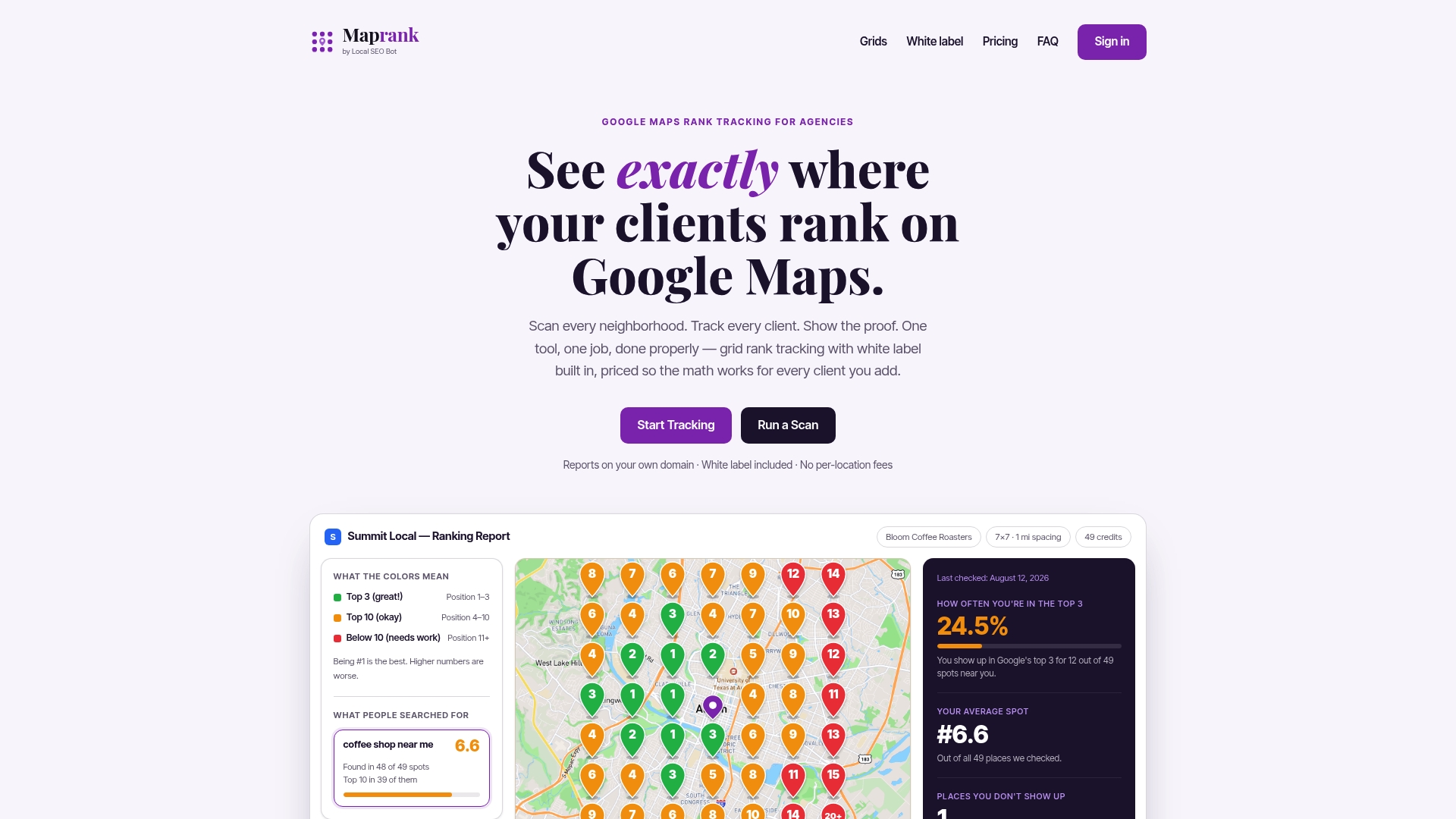
UTM tracking tells you what happens after someone clicks a Google Business Profile link. It doesn’t tell you how visible that profile is in the first place, how it ranks across different neighborhoods, or where a client is losing map pack coverage to competitors nearby. That’s the half of the picture GA4 can’t fill in, and it’s what we built Maprank to handle.
Our grid-based Google Maps rank tracking shows agencies exactly where a client’s listing stands across a customizable scan grid, neighborhood by neighborhood, without connecting a single Google account. Pair that visibility data with your UTM-based GA4 reports and you get the full story for a client: how they rank, and what that ranking actually converts into on-site.
- Every plan includes white-label reporting on your own domain, so the ranking data sits next to your UTM conversion numbers in one branded deliverable.
- Unlimited businesses are included on every plan, with credit-based pricing that doesn’t penalize you for adding more client accounts or team seats.
If you want to see what a single scan looks like before committing to a plan, start with a one-off rank check on one listing, or check out Maprank Solo at $19 per month if you’re ready to track rankings on an ongoing basis.
FAQ
Is UTM tracking still used?
Yes, UTM tracking remains a standard method for Google Analytics 4 and other platforms to attribute sessions to specific campaigns, including links placed on a Google Business Profile. It’s still a direct way to separate GBP-driven traffic from general organic or direct sessions.
What is GBP call tracking?
Call tracking on a Google Business Profile typically refers to the native call metrics shown in GBP Insights, which count how many people tapped your listed phone number. This is separate from UTM tracking, which measures website clicks and on-site behavior rather than phone interactions.
How to find GBP URL?
Your Google Business Profile’s editable link fields, including the primary website, booking link, and menu link, are managed inside the Business Profile dashboard. The exact fields available depend on your business category and any connected booking providers.
What does UTM mean for tracking?
UTM stands for Urchin Tracking Module, a set of parameters appended to a URL that tell an analytics platform where a click came from. The essential parameters are utm_source, utm_medium, and utm_campaign, which together identify the origin, channel type, and specific campaign behind a given session.
Sources
- UTMs for Google Business Profile: Track Clicks Smarter
- URL builders: Collect campaign data with custom URLs - Analytics Help
- Attributer